Theatre sound playback is about delivering the right audio at the right moment while keeping the operator’s work clear. TuneIT provides playback pads and playlists on Windows and macOS, with waveform trimming and external control options. It can be evaluated for effects, entrance music, rehearsals and other audio-led parts of a production.
The practical workflow below uses those documented functions. It is a planning example, not a report from a named theatre and not a claim that TuneIT replaces every type of theatre show-control system. Confirm the needs of your own production before building the full show.
Separate called sound cues from background music
Short effects often need direct access: a doorbell during dialogue, a transition sting or a repeated rehearsal cue. Put those moments on clearly labelled pads. Ordered music serves a different purpose. A preshow or interval playlist can keep that material together without making the operator search through individual effects.
Choose labels that agree with the prompt book. “Doorbell — scene two” is more useful during a reset than a cryptic source filename. Keep an operator’s written cue sheet alongside the project so that the person calling the show and the person pressing the control mean the same thing by each cue.
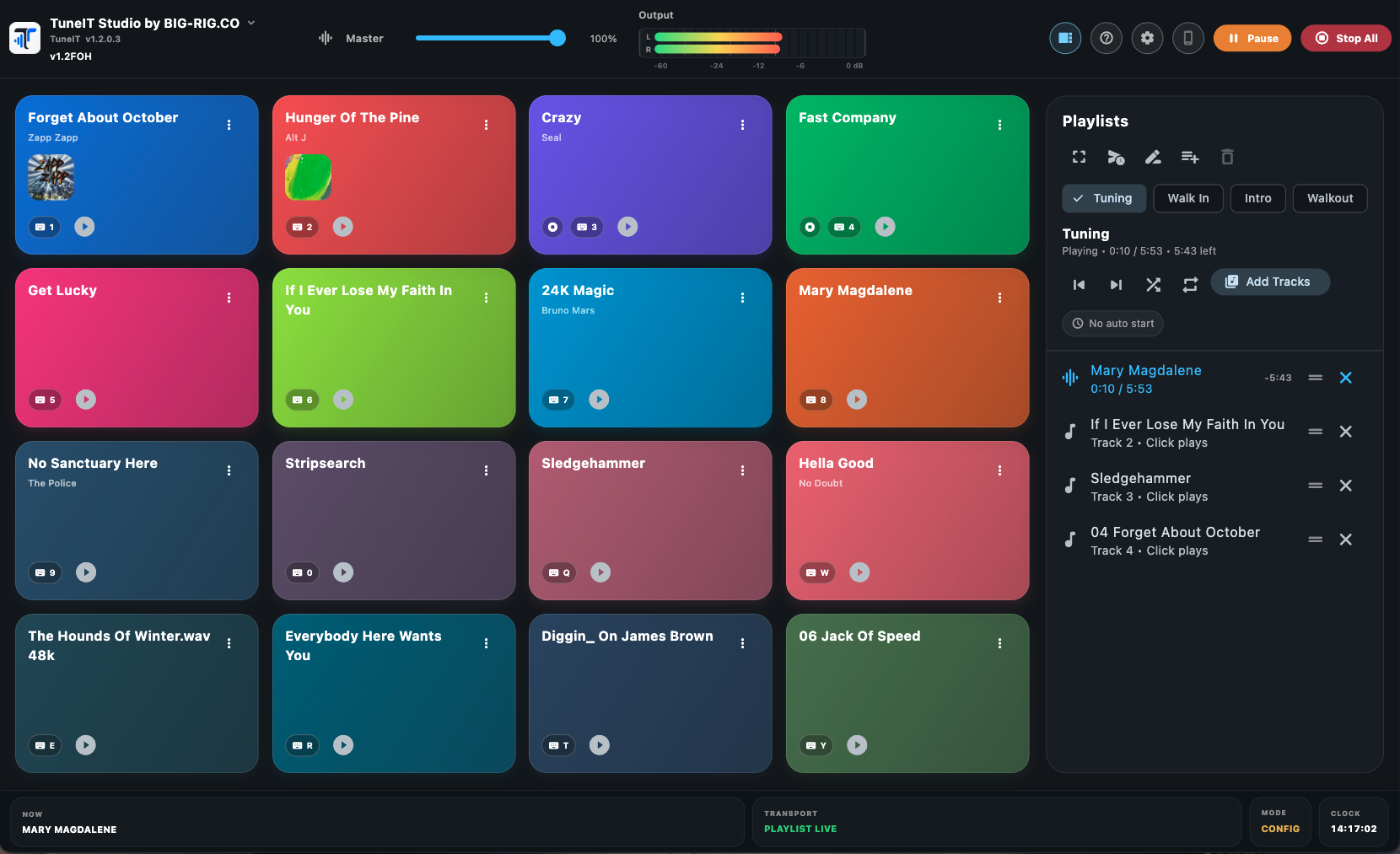
An example: a small spoken-word production
Imagine a production with preshow music, three called sound effects and an interval. The aim is to give the operator a repeatable audio routine, while allowing the director to rehearse scenes out of order.
- Prepare the audio: collect the approved files in a clearly organised location. Check their content and levels by listening before assigning cues.
- Build the layout: place the three effects on separate pads and use names that match the cue sheet. Create a separate preshow playlist and an interval playlist.
- Prepare cue boundaries: inspect the waveform and use the documented trim controls where a file needs a different start or finish. Audition the result, including the end of the cue.
- Rehearse the call: the stage manager calls an agreed cue and the operator triggers its pad. Repeat the scene from different starting points rather than testing only one uninterrupted run.
- Check music transitions: TuneIT documents playlist crossfade controls. Audition any overlap deliberately; a seamless music transition is not necessarily appropriate for a dramatic sound effect.
- Prepare for performance: save the project, check the selected audio output and rehearse the complete sequence on the actual playback rig. TuneIT’s documented Show Mode reduces accidental editing; it does not replace an operator’s cue check.
Use rehearsals to find the awkward moments
Test what happens when the director stops halfway through a cue, repeats a line or jumps back a scene. Agree who stops playback, which cue is next and how the operator confirms the reset. These decisions belong in the operating plan; the presence of playback software alone does not decide them.
Make a note of unclear pad names, unexpected file tails and level differences while they are easy to fix. When a trim changes, listen again. A waveform is useful for preparation, but the final check is what the audience will hear through the intended system.
Confirm the audio path at the venue
Select the intended output in TuneIT’s audio settings and test the path through the interface, console and loudspeakers. Check every required output on the actual computer. Do not assume that a project tested through laptop speakers proves the venue routing, or that another application’s channel-patching behaviour is identical.
Before doors, verify that all required media is available and that the operator can identify the correct project and playlist. Keep a recovery plan appropriate to the production, including how the team will respond if playback or the computer stops.
Add remote control only when it helps the operator
MIDI and OSC are documented control options. They can be useful when physical buttons or another show-control device suit the job, but first establish that the same action works locally. Then test one external action at a time and confirm the control mapping after reopening the project. TuneIT Remote is for control; Viewer provides read-only visibility. They should not be treated as interchangeable roles.
Decide whether the workflow fits your show
Use TuneIT features to check the documented tools, the documentation for setup guidance and Downloads for the official software source. If your production requires complex automation or non-audio cues, verify those requirements separately rather than inferring support from this audio workflow.
Check licence and rental options when planning the production.